LAB 2

Today’s lab will focus on downloading and setting up DBeaver.
Software tools needed: web browser.
Downloading DBeaver
We will be using DBeaver, a GUI that lets you connect, view and query databases without using the terminal.
To install and launch DBeaver:
-
Navigate to the DBeaver website and download the installer for your operating system.
-
Once the file has downloaded, open it. You should see the DBeaver icon. Drag the icon to the application folder to install it. Open DBeaver from the Application folder or from Launchpad.
-
Follow the prompts to complete the setup.
Using DBeaver
Creating Database In DBeaver
-
Create a new database and connect it by clicking the plug icon in the upper-left corner. Select SQLite and click on next. It will pop up a “Generic JDBC Connection Settings” window. Click on
Create...and save it as “dbeaverdatabase.db” on your desktop, then click onSaveandFinish. Right-click on the database that you just created, and selectConnect(green plug icon). -
Create a new SQL script by right-clicking on the database, selecting
SQL Editor, and the selectingNew SQL script. (control^ + ]). The SQL Editor will open, where you can write and execute SQL commands by clicking on the third icon of the left side toolbar.
-- foreign key enforcement
PRAGMA foreign_keys = ON;

-- clean tables
DROP TABLE IF EXISTS Member;
DROP TABLE IF EXISTS Team;

CREATE TABLE Team (
    team_name TEXT(20) NOT NULL PRIMARY KEY,
    team_practice_night TEXT(20)
);

INSERT INTO Team (team_name, team_practice_night) VALUES
    ('TeamA', 'Tuesday'),
    ('TeamB', 'Monday');

CREATE TABLE Member (
    member_id INTEGER NOT NULL PRIMARY KEY,
    member_last_name TEXT(20) NOT NULL,
    member_first_name TEXT(20) NOT NULL,
    member_phone TEXT(20),
    member_handicap INTEGER,
    member_join_date DATE,
    member_gender TEXT(1),
    team_name TEXT(20),
    FOREIGN KEY (team_name) REFERENCES Team(team_name)
);

INSERT INTO Member (member_id, member_last_name, member_first_name, member_phone, member_handicap, member_join_date, member_gender, team_name)
VALUES
    (118, 'McKenzie', 'Melissa', '6468888888', 30, '2005-05-28', 'F', NULL),
    (138, 'Stone', 'Michael', '9188888888', 30, '2009-05-31', 'M', NULL),
    (153, 'Nolan', 'Brenda', '7188888888', 11, '2006-08-12', 'F', 'TeamB'),
    (176, 'Branch', 'Helen', '9298888888', NULL, '2011-12-06', 'F', NULL);

SELECT * FROM Team;
SELECT * FROM Member;
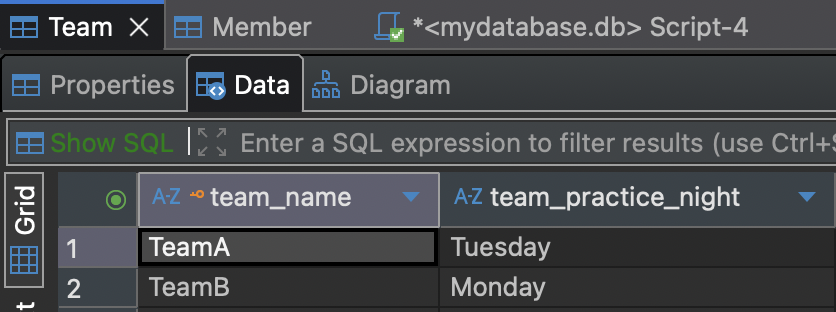
After executing the code, you should see the following tables.
*** If tables do not show up after executing the SQL script, right-click on the database and select Refresh.

Opening Database In DBeaver
In the previous lab, we learned how to create a database ising the terminal and and Python IDLE. Now, we will access that same database through DBeaver and view its diagram.
-
Click the plug icon in the upper-left corner to create a new database connection. Select SQLite and click on next. In the Generic JDBC Connection Settings window, click
Open...and search for the database “mydatabase.db” on your desktop. Click onOpenandFinish. Right-click on the database that you just opened, and selectConnect(green plug icon). -
Right-click on the database that we just connected, and click on
View Diagram. You will see that the two tables are connected.
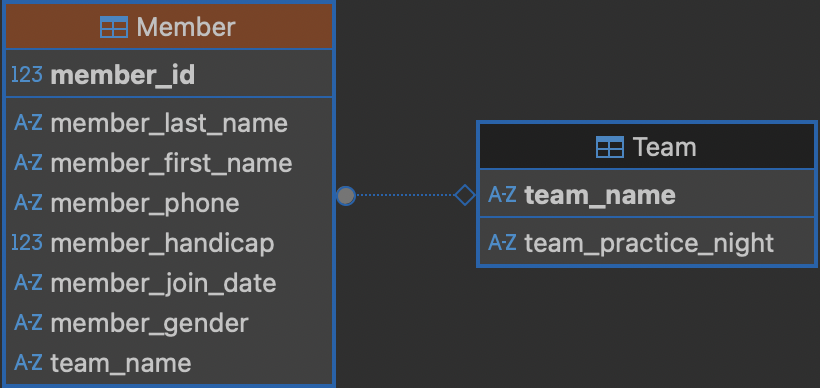
If you click on the Team attribute in the Member table, it will be highlighted in green in the Member table and team_name in the Team table because it indicates that Team is a foreign key referencing team_name.